
The "Percent" recognition amount computation method allows the user to specify the percent of the total line amount to be recognized in the given period.
Where transactions lines (e.g. on an invoice) are based upon a Product/Service item, and an auto-date rule is specified for service dates, then a percent template can also be specified which will be applied to each transaction line automatically.
For example, when on the Items page Monthly, Percent is set and saved using SAVE SETTINGS, then the start date rule, duration and percent template can be set from the item details page and saved using SAVE DEFAULTS.
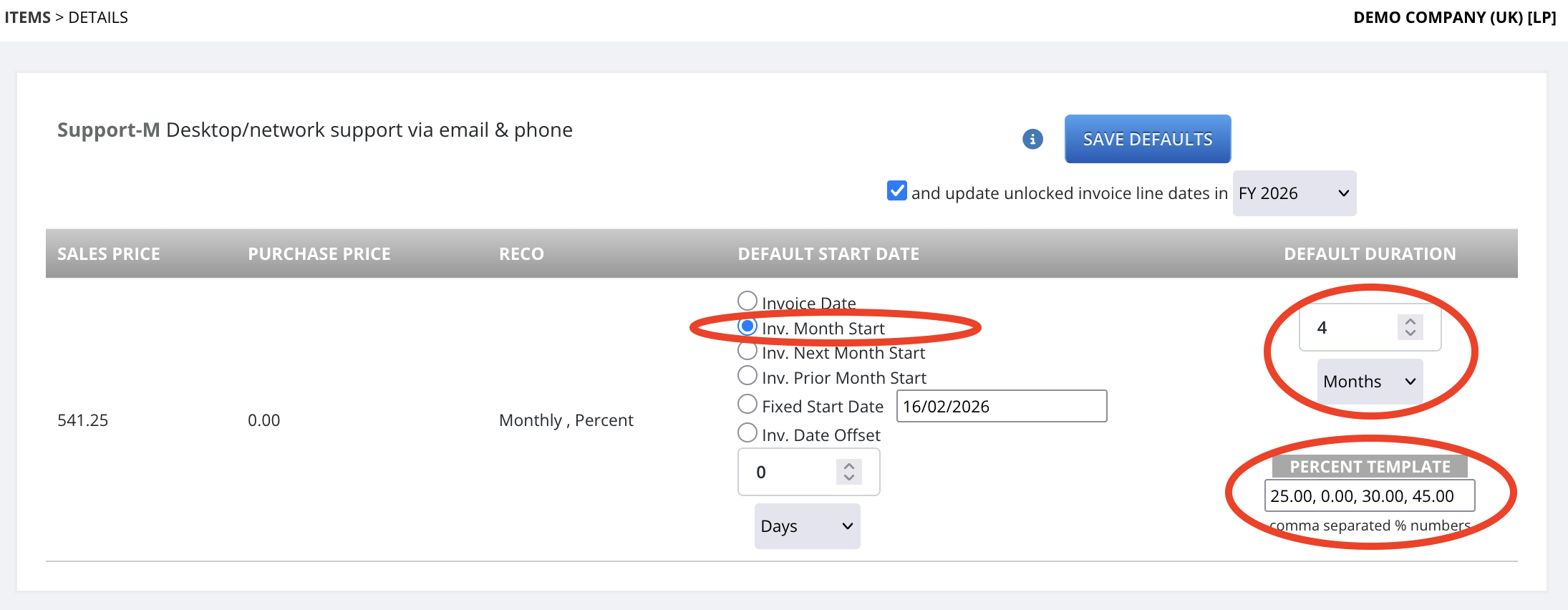
Note: A value is needed for each period in the duration, even if its zero. For the default start date rule, it is best use one of the the 'month start' options. And if setting service dates later on the specific invoice line, if possible, set the service start date to be the 1st day of the start month, and the service end date to be the last day of the end month. If the service date set spans more that the specified duration, the system will split the last % specified into the extra period(s).
If there are no Product/Service items, or with a Bronze subscription, use the below process from the invoice details or the bill details page:
- If not yet set, select "Monthly" or "Quarterly" or "Yearly" as the recognition cadence parameter on the line(s)
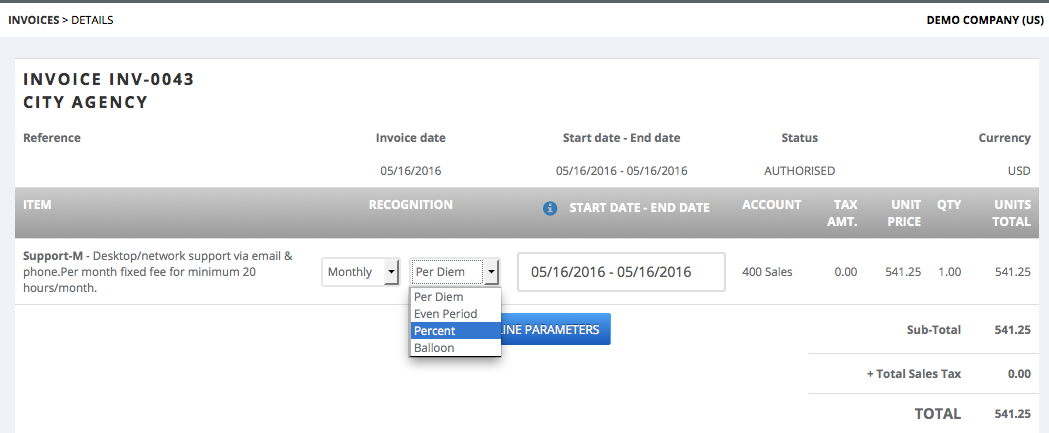
- Select "Percent" as the recognition computation type
- The above two steps may not need to be done if the "Item" parameters upon which a line is based is pre-set
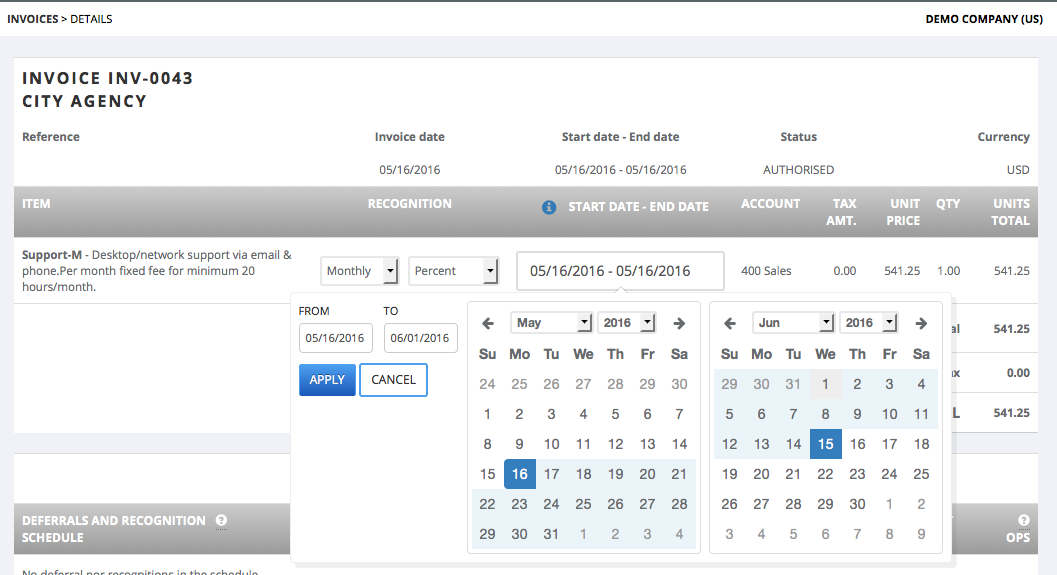
- Select the service start and end date and click Apply
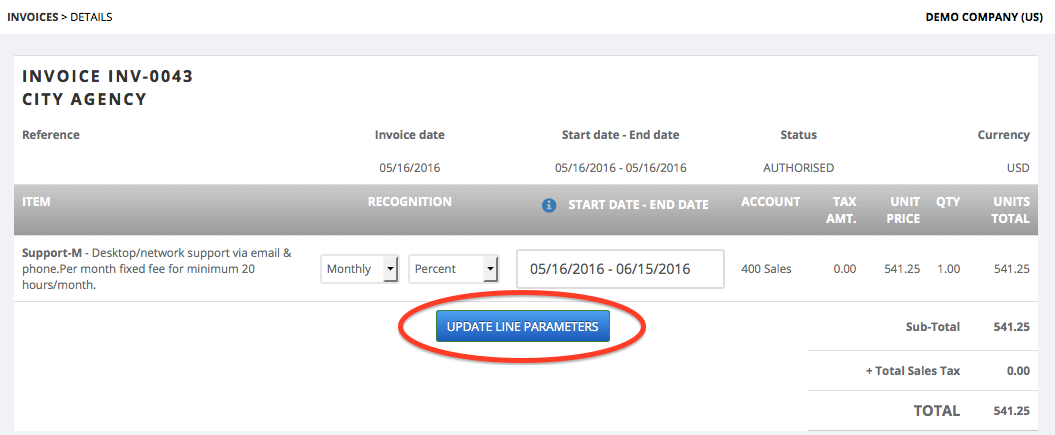
- Save these parameters and service dates by clicking "Update Line Parameters"
- Click the "%" button on the line to view the %s in each period, make any edits / adjustments then click "Update percents"
- If the line is based upon a Product/Service item and that item has a percent template it will be pre-applied. Otherwise the system will allocate the same percent to each period of the schedule to be created. The values automatically set can now be edited.
The edited/updated %s in each period will now be used to compute the amount recognized in each period in the schedule.
Notes:
The percent in any period can be 0% too - which allows creation of schedules with "holes" i.e. some periods where no amounts are recognized.
If the sum of the %s entered is not 100% (over or under), on execution of "Update Percents" Flowrev will adjust each % number in each period so that the sum will equal 100%.
Once a schedule for a line has been created, the % allocation of any period will no longer be editable.
The steps listed above are shown in the screenshots below - first select "Percent" as the Recognition computation method.
Then set the service start and end dates.
Save the recognition parameters and service dates set by clicking "Update line parameters"
View the updated invoice to review and change the percentages - if the line is based upon a Product/Service item which has a percent template it will be pre-applied otherwise the system allocates the same percent to each period.

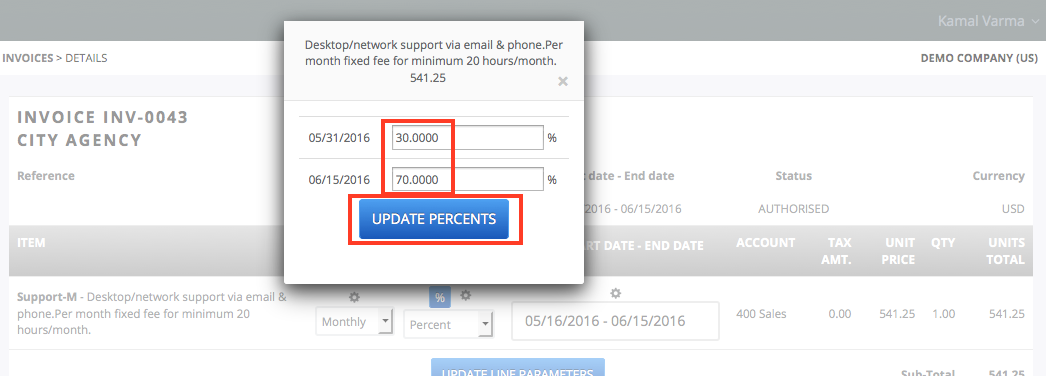
Once the percents have been changed and saved the schedule for this line, once generated from the Revenue page, will be according to the parameters, service dates and percents set.